What PC do you need? See our matching hardware pick.
Why most Fortnite settings guides waste your time
Fortnite's settings menu has close to forty toggles, and most of them are cosmetic. Shadows, reflections, effects quality — none of that changes whether you win a 50-50 box fight. What actually moves the needle is a small cluster of rendering and display settings that affect input lag and raw frame rate, plus the hardware underneath them. This guide skips the fluff and focuses on the handful of changes that are worth making, in the order Epic itself recommends for competitive play.
Display and rendering: the settings that matter
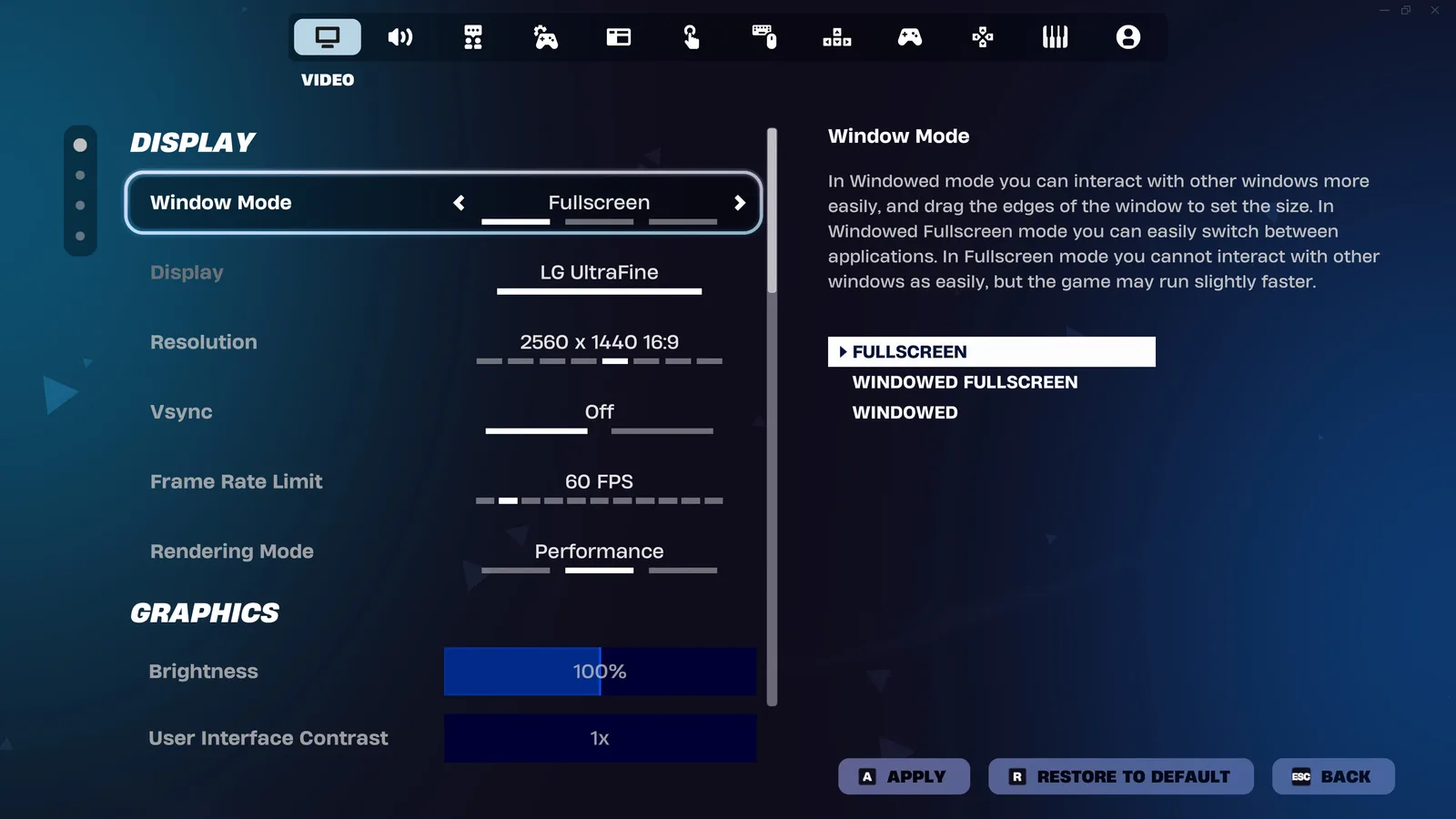
Start with Fullscreen, not Borderless Windowed. Borderless adds roughly 1–2 frames of input lag and can cost 5–15% FPS depending on your rig — there's no upside for competitive play, only compatibility convenience.
Set Rendering Mode to Performance. This switches Fortnite to a DirectX 12 rendering path that strips out a chunk of the CPU/GPU load that visual-quality modes carry. On anything below a high-end GPU, this alone is usually a bigger FPS gain than dropping every other slider to Low.
For Frame Rate Limit, the honest answer depends on your monitor. If you've got a 240Hz or 360Hz panel, set the limit to match it (or leave it Unlimited if your system can sustain it without tearing). If you're on a 144Hz or 165Hz display, cap the frame rate at or just above your refresh rate — an uncapped 300fps feed into a 144Hz panel doesn't help you see anything sooner, it just heats up your GPU for nothing.
Resolution, upscaling and view distance
Native 1920×1080 is still the competitive standard, even on higher-resolution monitors — it's the resolution most pros run because it's the easiest to push to a stable high frame rate on mid-range hardware. Start at 100% 3D Resolution rather than reducing render scale; only drop it if you're GPU-bound after everything else is tuned.
If your GPU supports it, upscaling is worth testing: DLSS Super Resolution on NVIDIA RTX cards (RTX 3060 and up) or FSR on AMD cards can recover meaningful frame rate without a visible hit to target visibility, since Fortnite's stylized art doesn't punish upscaling artifacts the way a photorealistic game does.
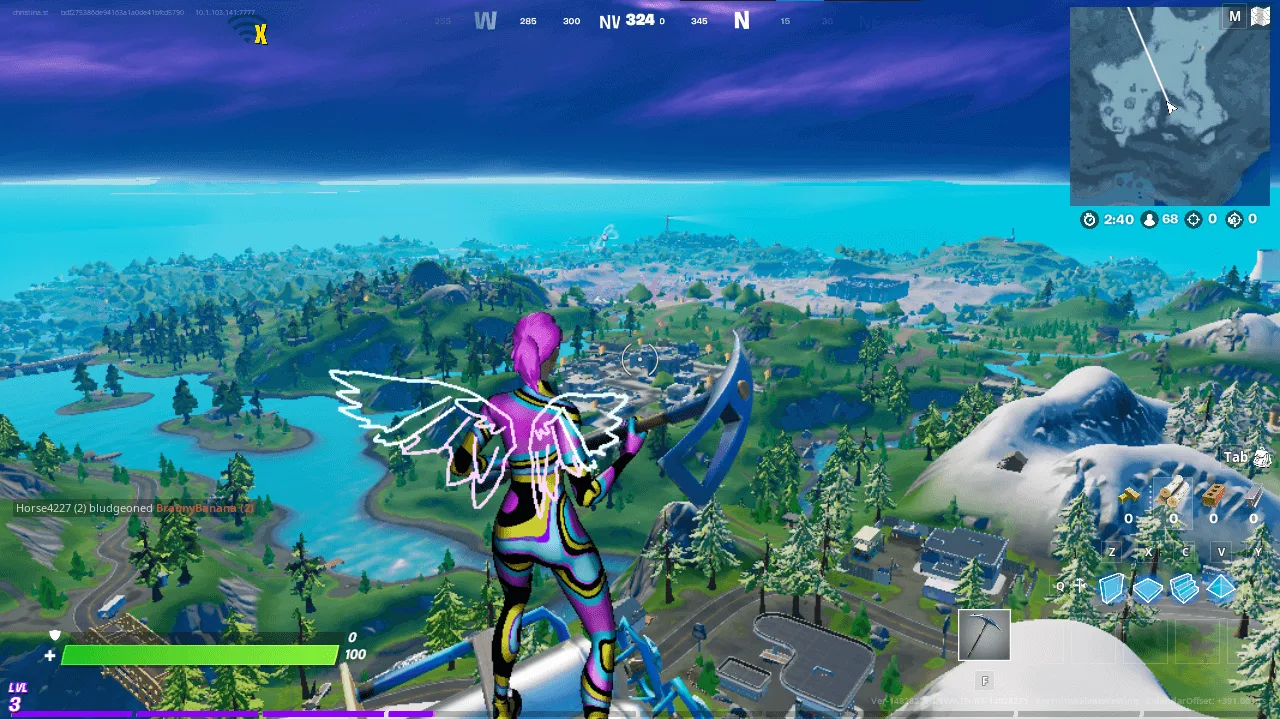
Set View Distance to Near. Competitive fights happen in your immediate surroundings — pushing view distance higher just renders terrain you don't need while you're focused on a close-range fight. Pair it with Field of View around 95–100, which widens your peripheral awareness for box fights and rotations without distorting your aim at range.
The PC bottleneck nobody's settings menu can fix
Here's the part every Fortnite settings guide leaves out: past a certain point, you're not FPS-limited by your settings, you're limited by your CPU and GPU. Dropping every slider to its lowest value on a GPU that's already the bottleneck buys you almost nothing — the frame rate ceiling is set by the hardware, not the menu.
The jump from 60fps to 144fps or 240fps is where competitive Fortnite actually gets easier: edits register faster, box fights feel less like a coin flip, and input lag drops in step with frame time. If your current rig can't hold a stable 144fps+ at these settings, no amount of settings-menu tweaking closes that gap — it's a hardware ceiling, not a software one. We built a $500 esports PC specifically for this — a budget rig aimed at 240fps competitive titles like Fortnite, Valorant and Apex Legends rather than single-player graphics fidelity. If you're bottlenecked below your monitor's refresh rate, that's the first thing worth checking before you keep hunting for another setting to change.
The settings that live outside the game
Fortnite's menu is only half the configuration. Several of the changes with the clearest effect on input latency sit in Windows and in your GPU driver, and no in-game guide mentions them.
NVIDIA Reflex Low Latency — in Fortnite's own settings on supported cards, and the highest-value toggle on this page after Performance Mode. It shortens the delay between your input and the frame that reflects it, which is a different thing from raw frame rate and is felt immediately in edits and close fights. Turn it on.
Exclusive fullscreen, confirmed. Selecting Fullscreen in the menu is step one; Windows can still apply its own compositing on top. If you launch from a shortcut, the game's executable properties have a "Disable fullscreen optimizations" option worth testing — measure before and after rather than assuming.
Hardware-accelerated GPU scheduling is a Windows graphics setting that helps on some configurations and does nothing on others. It is genuinely system-dependent, so test it rather than taking anyone's word — including ours.
Keep the GPU driver current, but not blindly. Driver updates around a major Fortnite season usually matter. Updating on the morning of a tournament does not.
Leave Game Mode on. It is enabled by default in modern Windows and the cases where turning it off helps are rare enough not to chase.
Working out what is actually limiting you
Before changing another setting, find out which component is holding the frame rate down. The fix is completely different depending on the answer, and guessing wastes afternoons.
Open an overlay that shows CPU and GPU utilisation, and play a real match — not the lobby, which tells you nothing.
- GPU pinned at 97–100% → you are GPU-limited. Lower 3D resolution or effects, or use upscaling. Lowering CPU-side settings will change nothing.
- GPU well below 90% while frame rate is capped below your target → you are CPU-limited. This is the common case in Fortnite, especially in late-game circles with many players building. Lowering graphics settings here buys you almost nothing — the fix is View Distance, fewer background applications, and ultimately a faster processor.
- Frame rate fine but stuttering in bursts → usually memory or storage rather than either chip. Close the browser and check that the game is installed on an SSD.
Late-game is where Fortnite gets hardest on a CPU: dozens of players building simultaneously is a simulation load, not a rendering one. If your frame rate is excellent in early drops and collapses in the final circles, that is the signature, and no graphics setting addresses it.
Settings people lower that they should not
Turning everything to minimum is the most common over-correction, and two of those sliders cost you information.
- View Distance below Near. Near is the competitive setting because it stops rendering terrain you cannot fight from. Going lower can hide players at exactly the ranges you need to spot them.
- Textures at the very bottom. Beyond a certain point, low-resolution textures make player models blend into terrain rather than reading as distinct silhouettes. Visibility is the goal, not fidelity — but they are not opposites at the bottom of the scale.
- Resolution below native. It raises the frame rate and costs you clarity at exactly the distances where you are trying to identify a target. Test it honestly before committing.
The rule that holds: lower what draws the scene, keep what helps you read it.
After every major update
Fortnite is a live game, and each substantial patch is a chance for your configuration to drift.
- Re-check Rendering Mode. A new season occasionally resets it or adds a new option.
- Re-check the frame rate cap, particularly after switching monitors or driver versions.
- Re-test one setting you assumed. Engine changes between seasons occasionally move where the cost sits.
- Do not re-tune everything. Changing ten things at once means learning nothing about any of them.
Beyond that, the same ceiling applies as always: settings redistribute the load your hardware can carry, they do not raise it.
FAQ
Does Performance Mode make Fortnite look noticeably worse? Yes, visibly — it's a deliberate trade-off. Textures and effects lose detail, but the payoff is a flatter, more predictable frame rate under fighting-heavy scenes, which matters more than fidelity in ranked or tournament play.
Is DLSS/FSR worth using in a competitive shooter? For Fortnite specifically, generally yes if your GPU supports it — the stylized, low-detail art style hides upscaling artifacts well, and the FPS recovery is usually worth the very minor clarity trade-off.
What if I've already maxed out every setting and I'm still not hitting my monitor's refresh rate? That's a hardware bottleneck, not a settings problem — see the build linked above for a budget rig built around exactly this target frame rate.
Sources
- Fortnite on PC: Best settings for competitive play in 2026 — Epic Games Store
- Settings comparisons aggregated from published third-party competitive-settings guides (setup.gg, coya.gg), cross-checked against Epic's own recommendations — not tested by RigCrate on this exact configuration.